User's guide
Installation
Windows
Visit the Releases page and find the latest version listed at the top
of the page. Under the "Assets" section, download the .msi installer file and run it. Follow the prompts to complete the installation process.
macOS
Visit the Releases page and find the latest version listed at the top
of the page. Under the "Assets" section, download the .dmg package and open it. Drag the NCGMGR application to the Applications folder.
If you encounter a warning stating that the app "cannot be opened because the developer cannot be verified", close the
prompt by selecting "Cancel", control-click the NCGMGR.app file in Finder and select "Open" to open the app anyway.
Linux
NCGMGR has not been tested on any Linux distributions, and must be manually built before it can be used. Issue reports from Linux systems will be accepted, though they may take longer to resolve.
First start
NCGMGR needs Node.js to be installed to function. It will check for a Node.js installation when it is first started.

When a Node.js installation is not found, an alert will be displayed to the user. To download Node.js, visit its website. The LTS version of Node.js is sufficient for the majority of users.
Installing a new copy of NodeCG

When a Node.js installation is found, NCGMGR can either automatically select a directory and install NodeCG into it, install NodeCG into a custom user directory or manage an existing installation of NodeCG.
Managing bundles and using NodeCG
After NodeCG has been installed, the interface will display options to start and stop NodeCG and manage bundles. A bundle in NodeCG contains graphics, dashboard panels and Node.js code (Extensions).
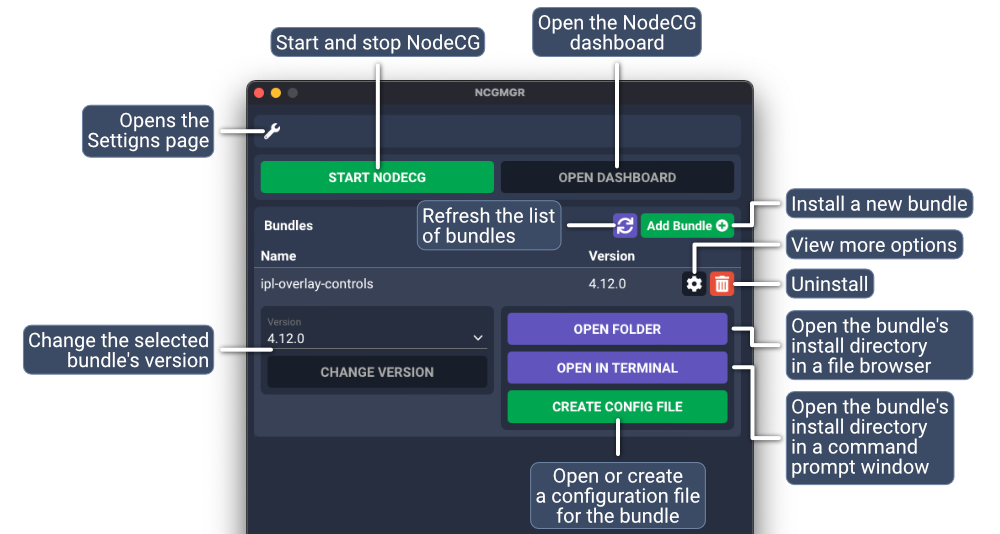
Installing bundles
Bundles can be installed by selecting "Add Bundle" in the main application window and typing one of the following as the repository path:
- A GitHub username/repository name pair (
inkfarer/ipl-overlay-controls) - A git repository URL (
https://github.com/inkfarer/ipl-overlay-controls.git)
Settings

Click the settings wrench along the top of the application window to access the settings page.
NodeCG status
From the settings page, the currently selected NodeCG installation directory can be viewed. Select "Change Install Folder" to return to the first-time setup page and select a different NodeCG installation or install NodeCG again.
Dependency status
The settings page displays the detected version of Node.js.
Error log
The error log, when enabled, displays a list of errors that have occurred while the application is running. It can be used to diagnose technical issues with NCGMGR itself.